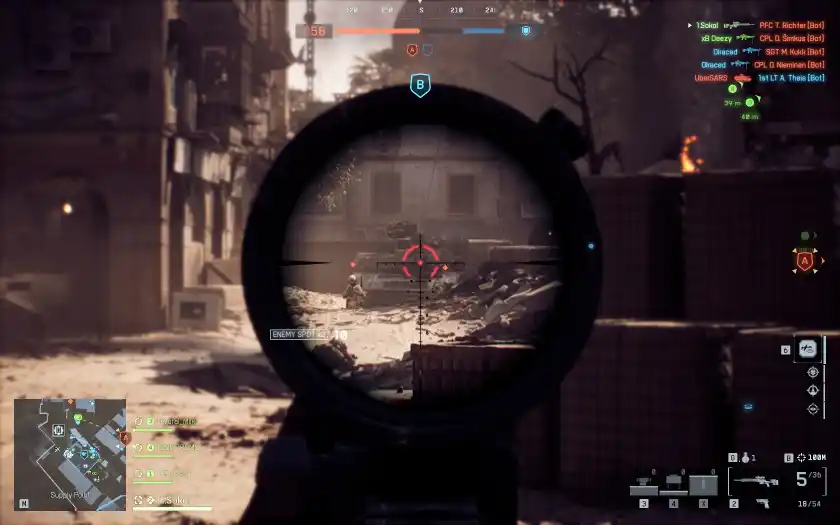
Battlefield 6: Best HUD Icon Settings for Maximum Visibility
Tired of a cluttered screen full of icons blocking your view in Battlefield 6? Bet. A clean HUD is a total game-changer for spotting enemies and winning more gunfights. These settings, found under Graphics > HUD Icons, will help you declutter your screen and focus on what matters.
This guide provides the best community-tested settings to maximize enemy visibility while toning down the less important icons. Let’s dial them in.
The Goal: See Enemies, Not Icons
The whole point of these tweaks is simple: make enemy icons big and obvious, while making friendly and objective icons smaller and more transparent, especially when you’re aiming down sights (ADS). This gives you a massive competitive advantage by keeping your line of sight crystal clear during firefights.
Enemy Icons: Max Priority
This is the most important section. We want enemy icons to be impossible to miss. Cranking these settings up makes spotting and tracking targets way easier, especially from a distance.
| Setting | Recommended Value |
| Enemy Icons Scale | 105 |
| Enemy Icons Opacity | 100 |
| Enemy Icons Opacity (Zoomed) | 100 |
Friendly & Squad Icons: Reduce the Clutter
Friendly and squad icons are great for situational awareness, but a screen full of blue can be a major L when you’re trying to aim. These settings tone them down so they’re visible but not distracting.
Friendly Icons
| Setting | Recommended Value |
| Friendly Icons Scale | 85 |
| Friendly Icons Opacity | 85 |
| Friendly Icons Opacity (Zoomed) | 70 |
| Friendly Revive Icons Scale | 74 |
| Friendly Revive Icons Opacity | 70 |
| Friendly Revive Icons Opacity (Zoomed) | 0 |
Squad Icons
| Setting | Recommended Value |
| Squad Icons Scale | 85 |
| Squad Icons Opacity | 85 |
| Squad Icons Opacity (Zoomed) | 70 |
| Squad Revive Icons Scale | 75 |
| Squad Revive Icons Opacity | 70 |
| Squad Revive Icons Opacity (Zoomed) | 0 |
Objective & Neutral Icons: Fade Them Out When Aiming
Objective markers are clutch, but not when they’re covering up an enemy peeking a corner. These settings make these icons fade out almost completely when you ADS, keeping your view clear during fights.
Objective Icons
| Setting | Recommended Value |
| Objective Icons Scale | 70 |
| Objective Icons Opacity | 45 |
| Objective Icons Opacity (Zoomed) | 0 |
| Objective Icons Opacity (Occluded) | 46 |
Neutral Icons
| Setting | Recommended Value |
| Neutral Icons Scale | 75 |
| Neutral Icons Opacity | 45 |
| Neutral Icons Opacity (Zoomed) | 0 |
Aim-Based Icons Opacity: Leave at Default
This section is a bit complicated and controls how icons fade in and out of your peripheral vision. The community consensus is to leave these settings at their default values.
Messing with them can sometimes make your HUD behave unpredictably. Sticking with the default is the safe play here to ensure everything works as intended. For reference, the default values are:
| Setting | Default Value |
| Icons Opacity Peripheral Zone Size | 50 |
| Icons Opacity Scaling Center Scale | 10 |
| Icons Opacity Peripheral | 100 |
| Icons Opacity Central | 100 |
| Icons Opacity Peripheral Zone Size (Zoomed) | 50 |
| Icons Opacity Scaling Center Scale (Zoomed) | 10 |
| Icons Opacity Peripheral (Zoomed) | 67 |
| Icons Opacity Central (Zoomed) | 20 |
And that’s the setup! With a cleaner HUD, you’ll find it way easier to focus on what actually matters: clicking on heads. Tweak these settings to your liking, but this is a fire starting point for better visibility. GG!